You want to save a Reel. Maybe it's a recipe you'll lose in your feed by tomorrow, or maybe it's your own content that you're trying to get onto TikTok before the trend dies. Either way, you have probably hit the same wall as everyone else — Instagram doesn't make this obvious, and half the "downloader" sites out there look outright sketchy.
This guide covers every legitimate method, what you actually get with each one (quality, watermarks, whether the creator finds out), how to pull just the audio, and where the legal line actually sits is not the vague one-liner most guides give you.
What "Downloading a Reel" Actually Means (Read This First)
Two different things get called "downloading," and mixing them up is where most confusion starts.
When you save a Reel on Instagram, it's added to your private Saved collection. That's a bookmark, not a file. To view it again, you have to log into the app, and you can't share the video outside the platform.
Downloading means an actual video file lands on your device. You can watch it offline, edit it, or move it to another app. This is what people usually mean when they search this topic, and it's what the rest of this guide focuses on.
One more thing to set straight before you pick a method: you can always download your own Reels. Downloading someone else's only works if their account is public. There's no legitimate way around a private account, and any tool claiming otherwise is lying.
Every Method Compared at a Glance
Here's the decision in one table. Pick your row, then jump to that section below.
| Method | Quality | Watermark? | Login Required? | Private Accounts? | Creator Notified? |
|---|---|---|---|---|---|
| Native save / download | Original | No | Yes | N/A (your own) | N/A |
| Screen recording | Screen resolution | No | No | Yes, if viewable | No |
| Web downloader | Original (if source) | Only if re-rendered | No | No (public only) | No |
| Desktop browser | Same as web | Same as web | No | No (public only) | No |
No method in this table notifies the creator, as Instagram does not have a 'Seen by' list for Reels.
The pattern worth noticing: nothing here notifies the creator. Instagram doesn't have a "Seen by" list for Reels the way it does for Stories, so there's no mechanism for anyone to know you downloaded their content, regardless of which method you use.
Method 1: Instagram's Native Save & Download Options
If it's your own Reel, always start here. It's the only method that guarantees zero quality loss.
Open your posted Reel, tap the three dots in the bottom right, and look for Save video or Download. If you're downloading before you even post say, you recorded something in the app and want a copy before it goes live, that option lives in the editing screen before you tap "Share."
Here's the part that trips people up: sometimes a native download comes out with the audio muted, even though it played fine in the app. That's not a bug. If the Reel uses a licensed commercial track, Instagram's own download feature can strip or mute that audio because of the music licensing agreement app is allowed to play the song, but downloading a copy of it is a different right entirely. If your downloaded file has silent audio despite the Reel having music, this is almost certainly why.
Saving another user's public Reel via the bookmark icon works differently. It's a private flag inside your collection for in-app rewatching. No file, no transfer.
Method 2: Screen Recording (iPhone and Android, Step by Step)
This is your fallback when nothing else works — no app to trust, no link to paste, just your phone.
On iPhone: Swipe down from the top-right to open Control Center, tap the Screen Recording button (a solid circle inside a ring), then go back to Instagram and play the Reel from the start. Stop the recording from Control Center or the red status bar, and it saves straight to Photos.
On Android: Swipe down twice for the full Quick Settings panel and look for the screen recorder — the exact name and icon vary by manufacturer. Samsung, Pixel, and OnePlus all label it slightly differently. Tap Record, play the Reel, then stop.
Be honest with yourself about the trade-off: you're capturing your screen, not the source file. That means whatever resolution your screen renders at, plus any notification banner that pops up mid-recording, plus your phone's system volume baked into the audio. A source-file download will always look and sound cleaner. Use screen recording when a Reel has downloads disabled and no downloader tool works, not as your default.
Method 3: Third-Party Web Downloaders (And Why Some Add Watermarks)
These tools work the same basic way: you paste a public Reel's link, their server fetches the video file, and you download it — no app, no login to Instagram.
Here's the technical detail that actually matters, and that most guides skip: why do some downloaded videos have a random logo stamped in the corner? A downloader that returns a clean file pulls the raw media straight from Instagram's servers. What you get is byte-for-byte what was posted.
A downloader that adds its own watermark is doing something different: it re-renders the video by processing and re-encoding the file, which is also why those versions often look slightly softer than the original. If quality matters to you, that watermark is a signal about how the tool works, not just a branding choice.
To grab the link: open the Reel, tap the paper-plane share icon, and choose Copy Link. On desktop, the Reel's URL in your browser's address bar works the same way (it'll look like instagram.com/reel/ABC123...). Paste that link into the downloader, and it'll return the video, usually in a few seconds.
How to Download Just the Audio from a Reel
Instagram doesn't give you a "save audio" button anywhere. There's no separate audio endpoint to tap, because the platform only ever serves a Reel as a single, combined video file.
So every "Reels to MP3" method, no matter what site offers it, is actually two steps stacked together: download the video first, then extract the audio from it.
- Download the Reel as a video using Method 3 above — a clean, source-quality download, not a screen recording.
- Run that video file through an audio converter. On iPhone, share the saved video into a "Convert to Audio" Shortcut or a converter app from the App Store. On Android or desktop, any video-to-MP3 converter tool does the same job.
The reason step one's quality matters so much: your MP3 can only be as good as the file you extracted it from. A screen recording picks up your phone's system sounds, lowered in-call volume, and general compression all of which get baked permanently into the audio. Starting from a clean source-file download is the difference between a usable track and something that sounds like it was recorded through a wall.
Downloading Multiple Reels at Once (For Archiving or Backup)
This is a different use case than saving a single Reel you liked. It's meant for creators backing up their entire library, or anyone auditing a client's or competitor's content at scale.
Realistically, you have two options: a tool built for batch downloading that accepts a profile link and pulls everything available, or manually looping through single downloads one link at a time. The batch route is obviously faster, but it is worth knowing that aggressively pulling dozens of Reels from a public account in rapid succession can get a downloader tool blocked or rate-limited (or your IP address temporarily rate-limited or blocked). If you're archiving a large library, pace it out rather than trying to grab everything in one sitting.
For Creators: Letting Your Followers Download Your Reels
Here's the angle almost every guide on this topic misses, because they're all written from the "I want to download someone else's content" side. If you're the one posting, Instagram gives you a setting that flips the whole conversation: under your account's Reels settings, there's an "Allow downloads" toggle.
Turn it on, and viewers get a native Download option right on your Reel — no third-party tool, no screen recording, no workaround needed. Creators often enable this to make sharing easier, or to encourage fans to repost with credit. Others leave it off deliberately, specifically to make casual re-uploading harder (it won't stop a determined screen recording, but it does remove the one-tap option). Neither choice is right or wrong. It simply depends on whether easy sharing or content protection matters more for your account.
Repurposing Downloaded Reels for TikTok, YouTube Shorts, and Other Platforms
If you're downloading your own Reel to post it somewhere else, check three things before you hit upload again:
Aspect ratio — Reels are 9:16. TikTok and YouTube Shorts expect the same ratio, but if your original was edited with Instagram-specific safe zones (space left clear for the caption / UI overlay), you might want to re-crop rather than reposting as-is.
Leftover watermarks — If you downloaded via a tool that re-renders video (see Method 3), double-check there's no stray logo in the corner before posting to another platform. It looks unprofessional and gives away that the content is a re-upload.
Quality loss from repeated re-encoding — Every time a video gets downloaded and re-uploaded, there's a small compression hit. If you're a creator who regularly cross-posts the same content to three or four platforms, keep one untouched master file from your original export and pull from that each time, rather than downloading the same Reel over and over from wherever it currently lives, which compounds quality loss with every generation.
Is Downloading Instagram Reels Legal? A Practical Framework
Most guides give you one defensive sentence here. You deserve an actual framework:
| Scenario | Status | Notes |
|---|---|---|
| Personal, offline viewing | Generally fine | Saving something to rewatch later, for your own use |
| Reposting with credit | Gray area | Depends on platform rules and creator permission; credit is good practice, not a legal shield |
| Commercial use / no permission | Infringement | In most jurisdictions, straightforward copyright violation |
| Private accounts | No gray area | If you're not an approved follower, there is no legitimate method, full stop |
The video belongs to whoever created it the moment it was recorded. Downloading a copy doesn't transfer ownership.
Troubleshooting: Common Download Errors and Fixes
"Link not recognized"
Almost always a malformed or shortened URL — links forwarded through a messaging app sometimes get mangled with extra tracking text. Go back to Instagram and copy the link fresh from the share menu rather than reusing one you were sent.
"Only audio downloads, no video" (or the reverse)
Typically a bug specific to that tool, not something wrong on your end. Try the two-step method from the audio section above instead of relying on a tool that claims to do direct audio extraction.
"This account is private" error
Not a bug; the system is working as intended. No legitimate tool can pull content from an account you don't follow.
Downloaded file plays with no sound
Circle back to the licensing explanation in Method 1. This is common with native downloads specifically, and usually means the Reel's audio track is a licensed song Instagram won't let you export.
How to Stay Safe Using Reels Downloader Tools
Here are a few concrete red flags, rather than vague 'be careful out there' advice:
- Any request for your Instagram username and password — A public Reel link is all a legitimate tool ever needs. No exceptions.
- A "Download" button that's actually an ad — Some sites surround the real download link with multiple fake buttons designed to look identical. Always hover your mouse before you click, or use a browser with an ad blocker when exploring an unfamiliar site.
- Browser extensions asking for broad permissions — An extension that wants access to "read and change all your data on every website" to download videos is asking for far more than the job requires.
If a tool fails any of those checks, close it and try a different one. There are plenty of legitimate options that don't need any of that.
Why This Guide Focuses Where It Does
Reels usage skews heavily toward younger users and almost entirely toward mobile — which is exactly why this guide leads with phone-based methods and gives desktop only a secondary mention.
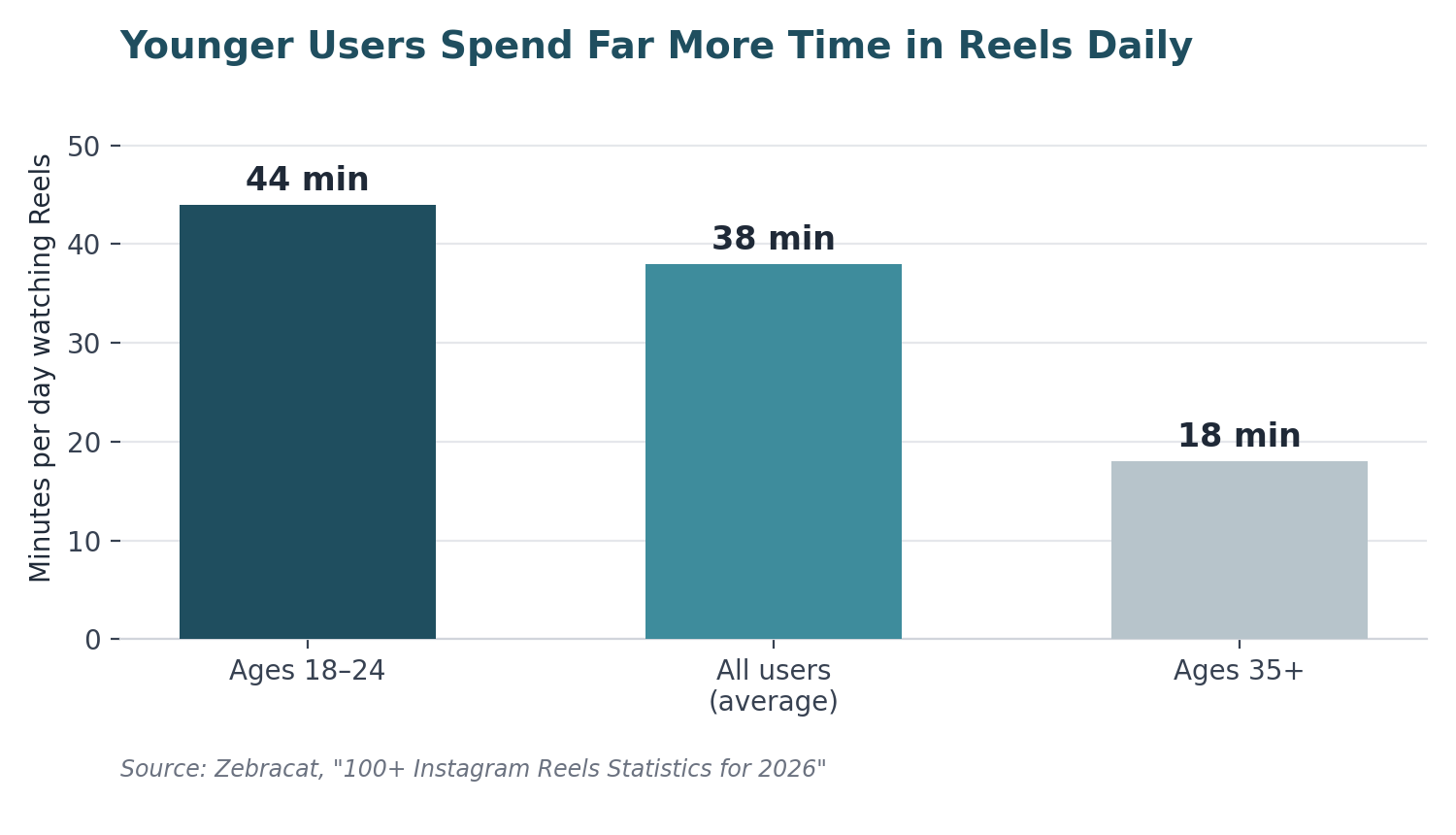
If you're 18–24, Reels are eating close to three-quarters of an hour of your day on average. That's not casual scrolling — it's a primary way this age group consumes content, which is exactly why "how do I save this" comes up so often.
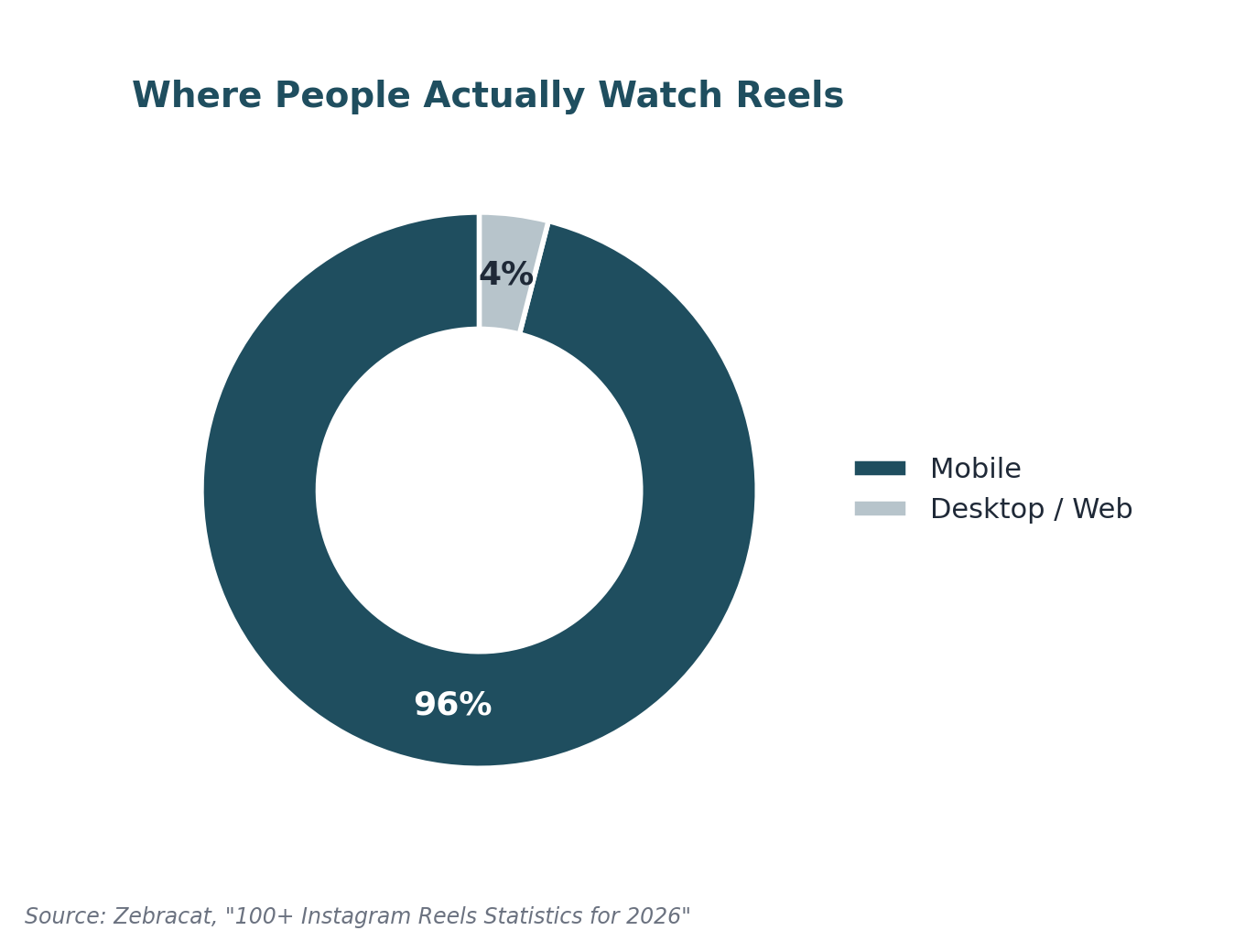
96% of Reels viewing happens on mobile. That's the reason the screen-recording steps above are written phone-first, and why desktop-based tools are treated as the exception, not the default, in this guide.
FAQ
Can I download someone else's Instagram Reel?
Yes. If their account is public, you can use a screen recorder or a third-party downloader tool. There's no legitimate method for private accounts you don't follow.
Does the creator get notified when you download their Reel?
No. Instagram doesn't have a "Seen by" list for Reels the way it does for Stories, and none of the download methods in this guide interact with the creator's account in any way that would alert them.
Why does my downloaded Reel have a watermark?
The tool you used re-rendered the video instead of fetching the source file. A downloader that pulls the raw media directly won't add a logo.
Is it illegal to download Instagram Reels?
Downloading for personal, offline viewing is generally fine. Reposting without credit or permission, especially for commercial use, is copyright infringement in most jurisdictions.
Can you download Reels from a private account?
Only if you're an approved follower viewing content you already have access to. There's no legitimate workaround for accounts you don't follow.
Conclusion
The method you need depends entirely on whose content it is and what you're trying to do with it. Downloading your own Reel: use Instagram's native option every time, as it is the only route with zero quality loss. When saving someone else's public Reel, a trusted web downloader gives you the cleanest file, with screen recording serving as your no-tool-needed fallback. Just remember the one line that matters legally: personal use is safe, reposting without permission isn't.
If you're a creator who finds yourself repeating this process every week to repurpose content across platforms, it's worth setting up a proper workflow consisting of a saved master file and a repost checklist, rather than re-downloading and re-compressing the same Reel every time a new platform calls for it.
- Know whether the Reel is yours or someone else's
- Using the correct method for that case
- Confirmed the account is public
- Avoided any tool that asks for your password
- Kept a clean master file for repurposing
- Respected copyright on other creators' content